🚫 Why YouTube Isn’t Safe for Kids—Even When It Looks Harmless
Once upon a time, YouTube felt like the wild west of the internet. Chaotic, unfiltered, and clearly not built for kids. Then came YouTube Kids, parental controls, and a flood of “family-friendly” creators. For a moment, it seemed like things were finally moving in the right direction.
But if you’re a parent today? That sense of safety is mostly smoke and mirrors.
⚠️ The Problem: What Looks Harmless… Often Isn’t
On the surface, videos may seem innocent—funny challenges, cartoon avatars, soccer highlights, or cute animations. But inside? You might find:
- Vulgar or explicit music playing over clips your kid clicked on for sports or humor.
- Sexualized or suggestive thumbnails, even on animated stories or “educational” content.
- Manipulative or disturbing plotlines, especially in channels like MSA (My Story Animated), where betrayal, trauma, and revenge are packaged for tweens.
And once your child watches one of these videos? YouTube’s algorithm is happy to serve up more of the same.
❌ YouTube Removed the Block Feature (Yes, Really)
Here’s where it gets worse: You can no longer block specific YouTube channels. Even if a channel constantly pushes inappropriate content, there’s no simple way to stop it from appearing again.
That leaves parents with three imperfect choices:
- Monitor every single video (impossible, let’s be real).
- Use YouTube Kids (better, but still flawed).
- Cross your fingers and hope the algorithm behaves.
✅ What You Can Do: How to Make YouTube Slightly Safer
While we can’t block channels anymore, here’s how to tighten up controls using YouTube’s Family Center.
🔧 Step-by-Step YouTube Safety Settings
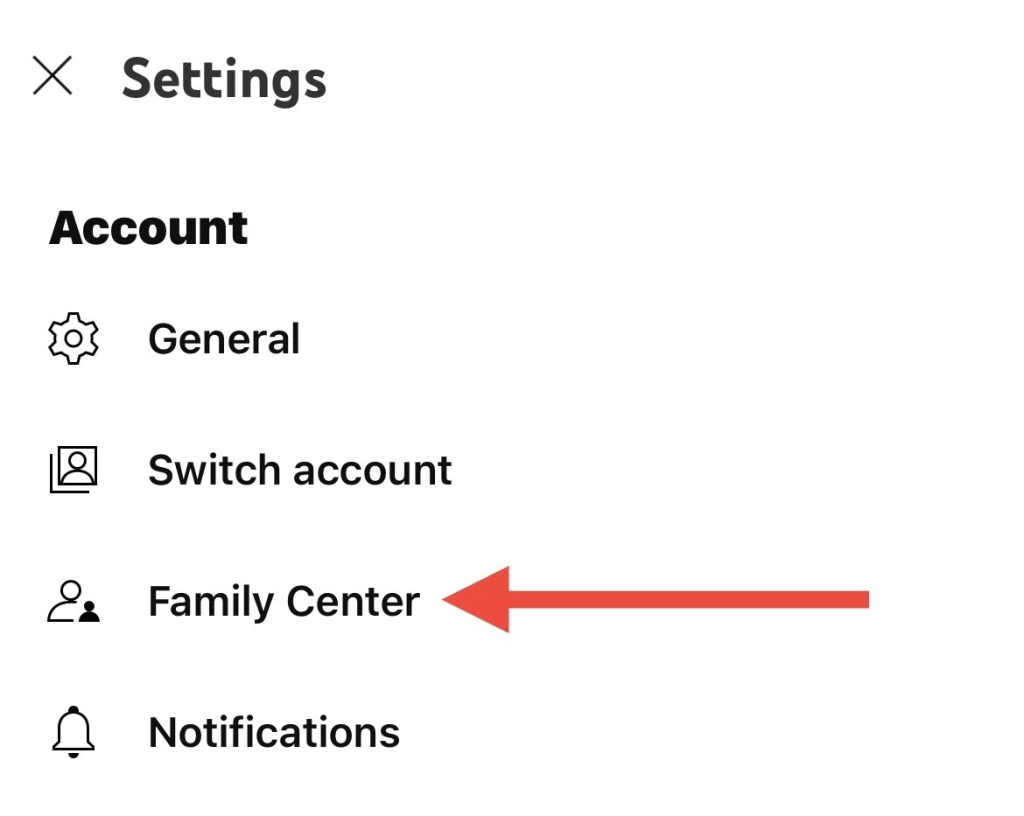
🔹 Step 1: Open Settings in Your Own YouTube Account
Go to your account > tap the gear icon ⚙️ > select Family Center.
🔹 Step 2: Choose Your Child’s Account
Tap on their profile to manage parental settings.
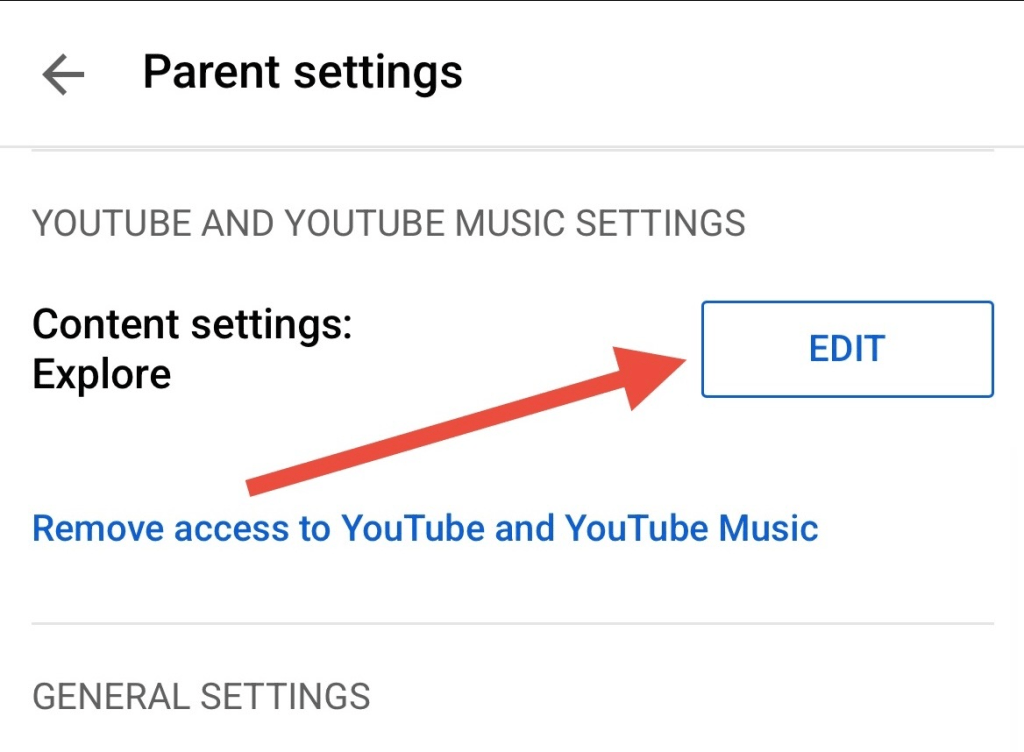
🔹 Step 3: Tap “Edit” Under Content Settings
Set it to Explore, which aligns with content for ages 9+
(You can also choose “Explore More” for 13+ if appropriate).

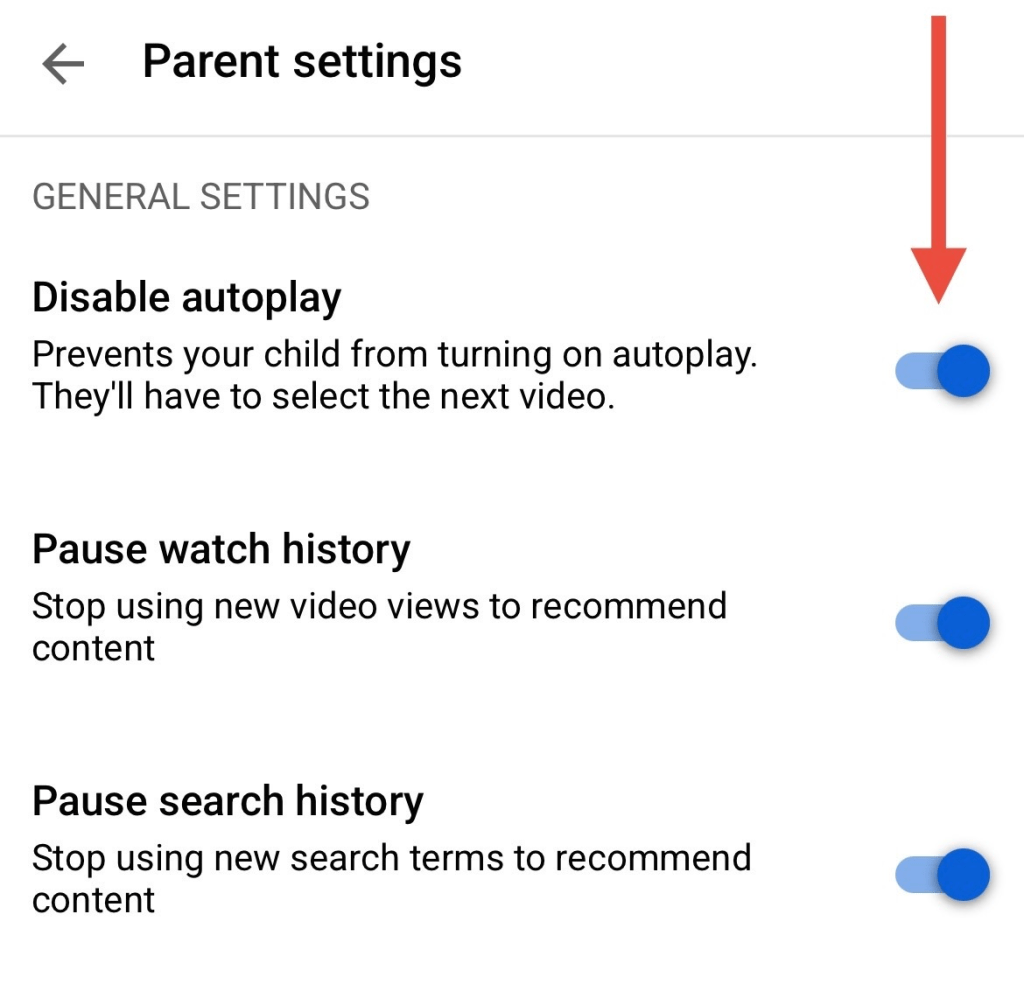
🔹 Step 4: Toggle These Settings ON
- Disable Autoplay
- Pause Watch History (do this if you are not needing to check their watch history – for example, if they don’t watch YouTube alone)
- Pause Search History
These reduce harmful recommendations and limit autoplaying into junk.
🔹 Step 5: Go Into Your Child’s Account Settings
Navigate to General and turn on:
- Remind me to take a break
- Bedtime Reminders (e.g. 10:00PM–6:00AM)

These tiny tweaks go a long way toward building better screen habits.
📺 Safer Alternatives to YouTube
If you want a screen-time option that doesn’t require constant surveillance, here are a few family-safe options worth checking out:
- 🌟 Common Sense Media: Ratings and reviews for YouTube channels, shows, and apps.
- 📱 Kidoodle.TV: Ad-free, curated content for children.
- 📚 PBS Kids Video App: Educational and wholesome shows.
- 💬 HappyKids.TV: Free and kid safe “Edutainment” for kids of all ages.
👀 Extra Tips for Safer Viewing (Even Without Full Parental Controls)
The truth is, even with settings enabled, YouTube still serves up content based on watch behavior. So here are a few extra ways to stay one step ahead:
✅ Quick Wins for Parents
- Check their subscriptions regularly
Kids often subscribe without thinking. Open their account, click Subscriptions, and unsubscribe from any channels that feel inappropriate or suspicious. - Subscribe them to safe, educational channels
YouTube doesn’t always recommend the best stuff on its own. Help guide the algorithm by following channels like: - Check their watch history frequently
Go to Settings > History > Manage All History and scroll through what they’ve watched. This gives you quick insight into what’s slipping through. - Clean up their homepage
If you see something sketchy being suggested, click the three dots under that video and choose “Don’t recommend channel.” It’s a small action, but it helps train the algorithm over time. - Reverse-engineer the algorithm
This one’s a little more time-consuming—but surprisingly effective. Log into their account and play approved content quietly in the background (e.g. while you’re cleaning, cooking, or working). It needs to play all the way through for YouTube’s algorithm to pick up on it. - Set reminders to stay consistent
Life gets busy. Consider setting a recurring alarm or calendar reminder on your phone to check subscriptions, watch history, or safety settings. It only takes a few minutes—and it makes a big difference over time.
📣 Final Thoughts (and a Call to Action)
If you’re frustrated—you’re not alone. Parents deserve better control over what their kids see. YouTube’s decision to remove blocking makes our jobs harder. But with these tools and some awareness, we can still push back.
👣 Take action today:
- Review your child’s watch history.
- Talk with them about what they’re watching—and why it matters.
- Use Family Center to adjust their access.
- Share this post with other parents who might not realize what their kids are being exposed to.
🙋♀️ And hey, YouTube—bring back channel blocking. We’re not asking to break the algorithm, just protect our kids from it.
📢 If you’re tired of the algorithm raising your kid, say something. Tweet. Post. Email. Make noise. Let YouTube know that families deserve real control—not just recycled “safe” content and stripped-down settings.
 More Than Mom Life
Leave a comment